 Homatic.ai
Crew access
Crew access: a fresh door code for every clean
Your cleaner needs to get in between guests, not a permanent code to your door. Crew access gives each cleaner, maintenance tech or inspector their own code for each turnover. It starts at checkout, stops before the next guest arrives, and is texted to them with a checklist they tick off from their phone.
Start free — no credit card See the setup
Why not just give the cleaner a code?
A permanent cleaner code works until it doesn’t. It opens the door while guests are staying, it travels when a crew member leaves, and nothing tells you when it was last used. Changing it means visiting the lock app and texting the new one by hand.
Crew access ties the code to your booking calendar instead. Every turnover gets a new code, valid only for that clean. When the booking moves, the code moves with it. When the booking is cancelled, the code is removed.
Before you start
- A lock that enforces a time window itself: Schlage, Yale, August, or any lock you connect through Seam. With these the lock stops accepting the code at the end of the window, even if the internet is down. Locks reached through SmartThings or Kwikset can take guest codes but are not offered for crew codes, because their end time would depend on Homatic removing the code in time.
- Your booking calendar connected, so Homatic knows when each checkout and the next check-in are. An owner block counts as the next arrival, so a crew code never runs into time you blocked off.
If no eligible lock is connected, the page says so and lists the locks it found.
Set it up
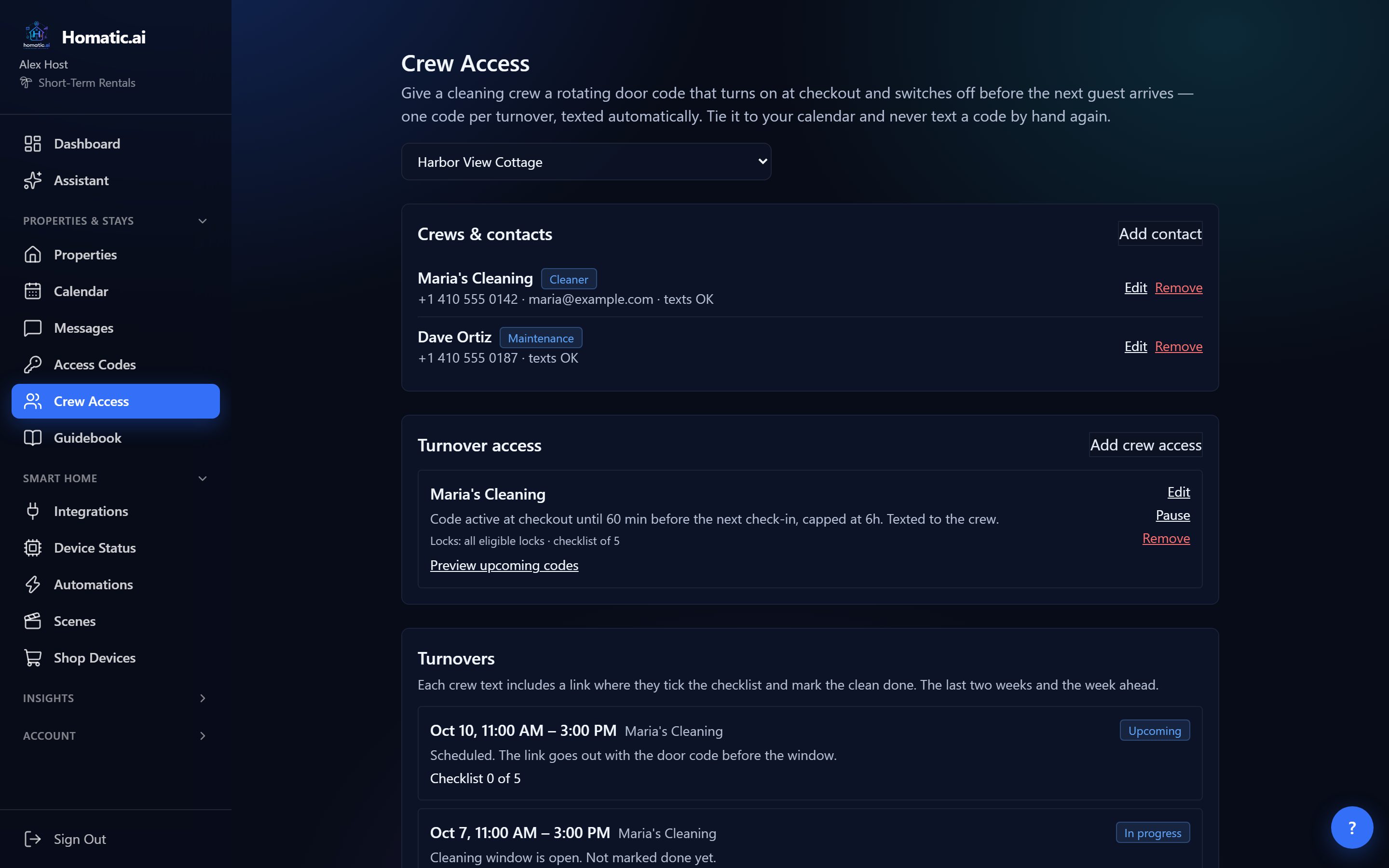
- 1Add the crew as a contactUnder Crews & contacts, press Add contact. Enter a name, pick a role (Cleaner, Maintenance, Inspector or Other) and the mobile number the code goes to. Tick the box to record that they agreed to receive texts. A crew contact is not a user: they never log in.
- 2Give them turnover accessUnder Turnover access, press Add crew access, choose the crew, and set when the code starts and ends (below).
- 3Add a checklistOne item per line, such as “Strip and remake beds”. It is optional; the crew’s text links to a page where they tick each item off.
- 4Preview, then leave itPress Preview upcoming codes to see the next seven days. From then on, every turnover gets its own code without you doing anything.
How the code’s window is worked out
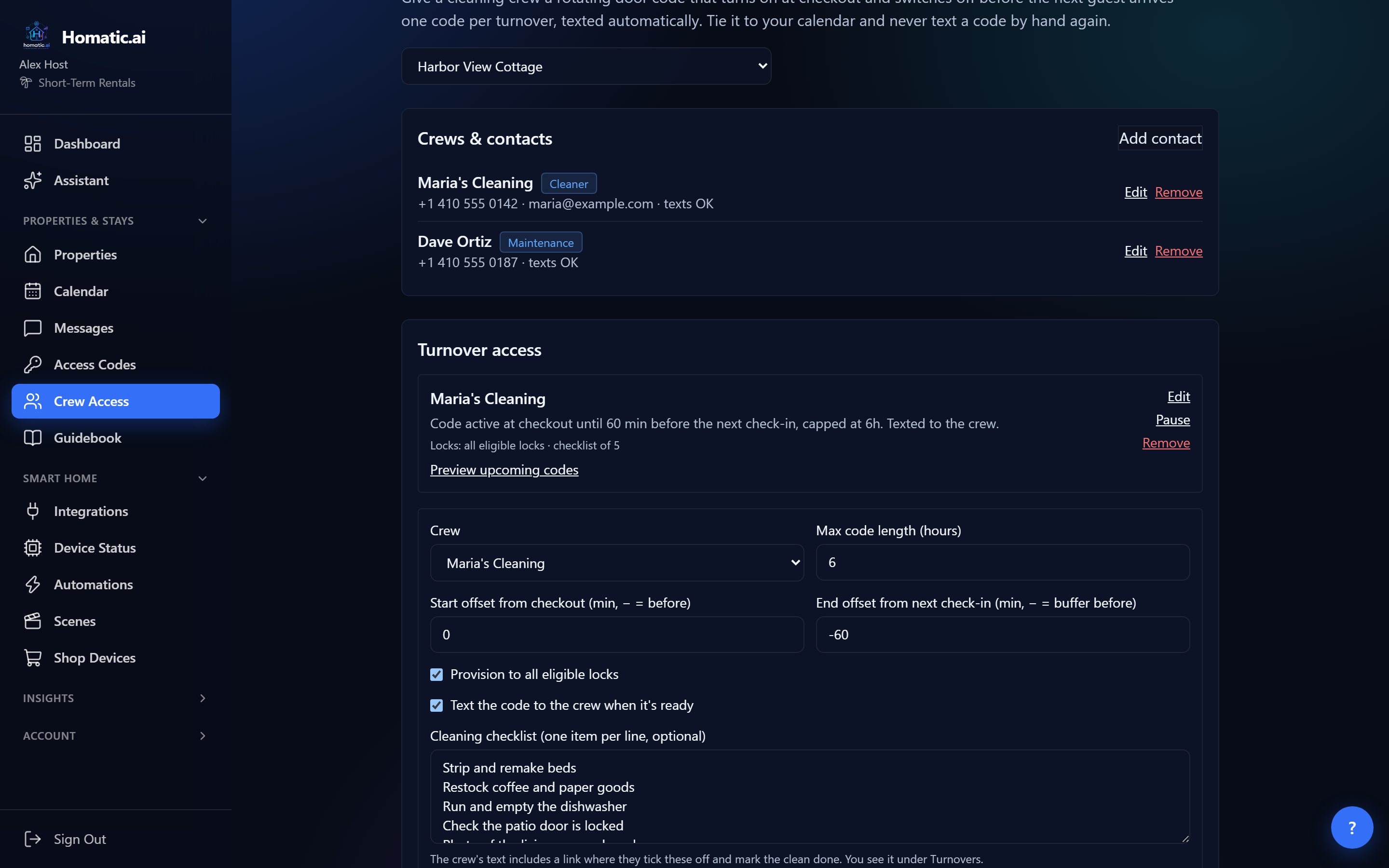
- Start offset from checkout: 0 means the code starts at checkout. A positive number starts it later; a negative number lets the crew in before checkout.
- End offset from the next check-in: a negative number is a buffer, so −60 switches the code off an hour before the next guest is due.
- Max code length: a hard cap, 1 to 24 hours. After a long vacancy the code still lasts only this long, so no crew code is ever live for days.
The code ends at whichever comes first, the next check-in (with your buffer) or the cap. If that leaves less than 30 minutes, for example a same-day turnover with almost no gap, no code is issued, and the preview tells you why rather than skipping it silently.
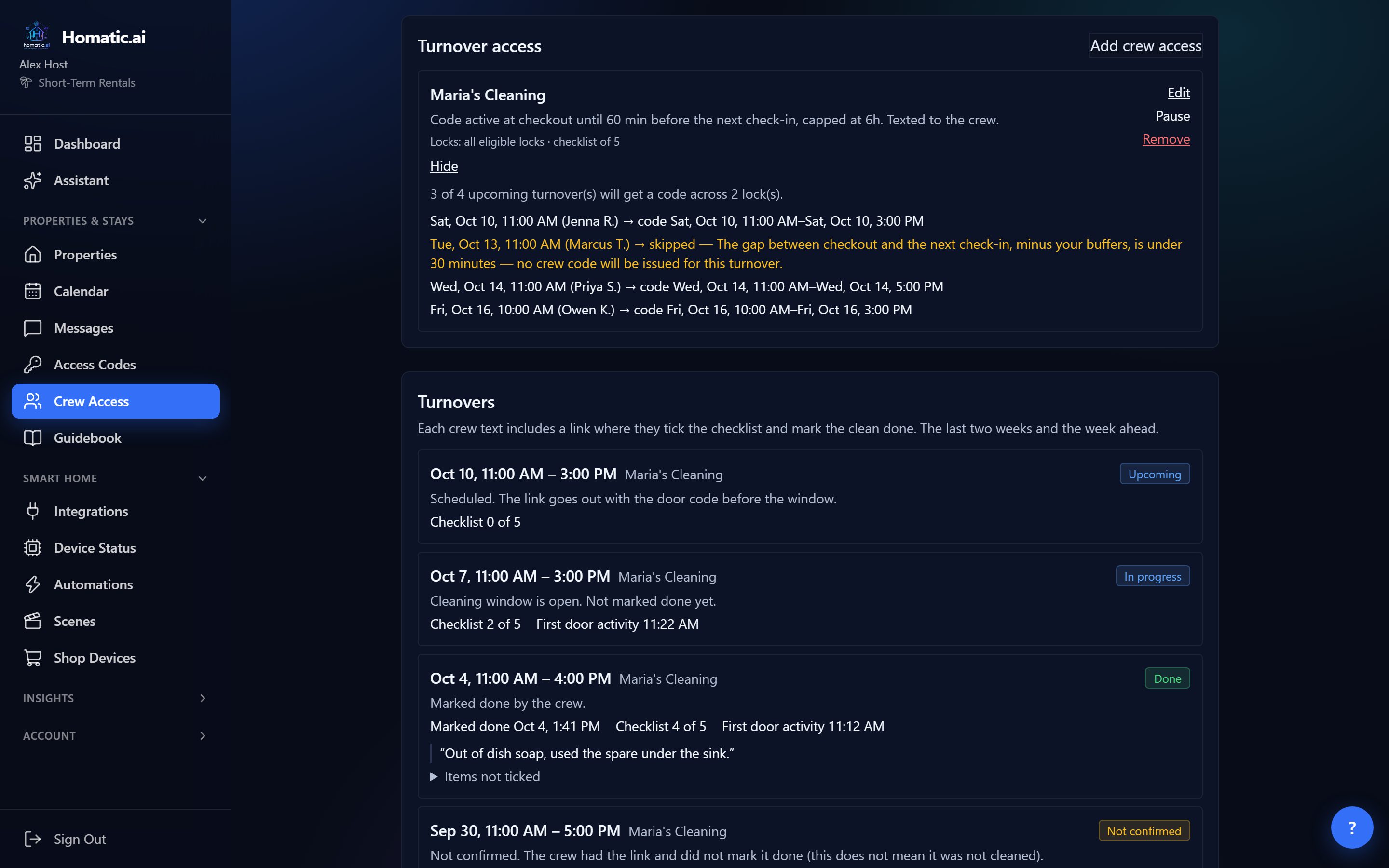
Homatic recomputes every upcoming turnover every few minutes, because calendars change. A shifted booking moves the code’s window, a cancelled booking removes the code, and two runs can never create the same code twice. Each crew code is a new PIN that does not clash with the guest’s code on the same lock.
Set up crew access → Add your cleaner, pick the locks, and the next turnover gets its own code.
What the crew receives
About 45 minutes before the window opens, the crew gets one text:
Hi Maria, your cleaning access code for Harbor View Cottage is 482913. It works Oct 7, 11:00 AM–Oct 7, 3:00 PM. Please don’t share it. When you’re done, tap: (link)
Two details make that text worth more than a code:
- It waits for the lock. The text goes out only after the lock has confirmed the code, so the crew is never sent a PIN that does not work yet.
- It says what is open. If a door or window sensor shows open when the text is sent, the text names it and asks the crew to check and secure it.
The cleaner’s page
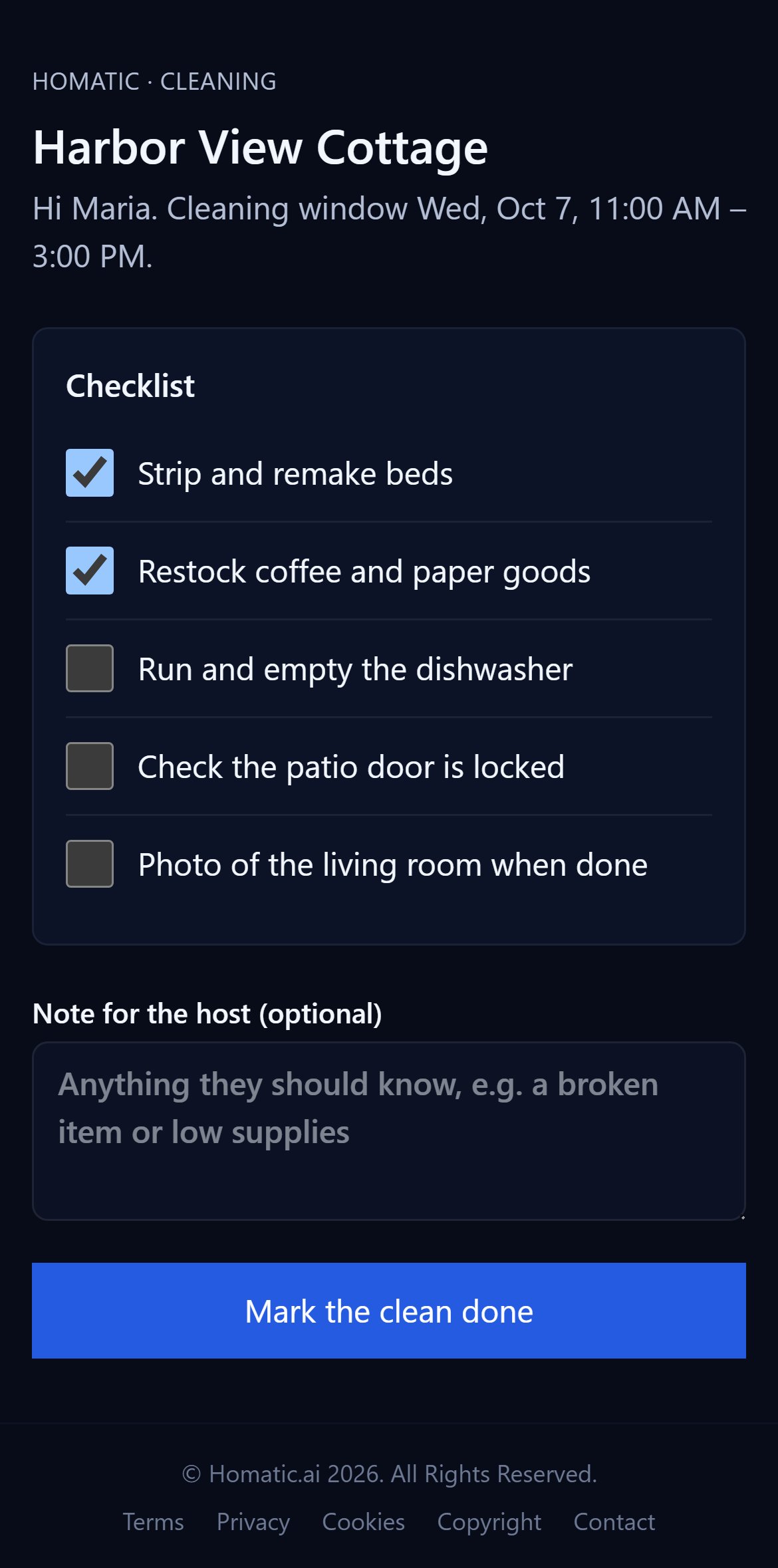
The link opens a page made for a phone held in one hand. No app and no login: the link itself is the key, and it shows only the property name, the cleaning window and the checklist. It never shows the door code, the guest’s name or any other turnover.
Seeing every turnover
The Turnovers list shows the last two weeks and the week ahead, with a status for each clean:
| Status | What it means |
|---|---|
| Upcoming | Scheduled. The link goes out with the door code before the window. |
| In progress | The cleaning window is open and the crew has not marked it done yet. |
| Done | The crew marked it done. You see when, how many checklist items they ticked, which ones they did not, and any note. |
| Not confirmed | The crew had the link and did not press the button. That does not mean the place was not cleaned, and the list says so. |
| Link not sent | The text never went out (no phone number, texts off, or a failed send), so the crew could not confirm. This is never counted against them. |
| Cancelled | The booking changed, so the turnover was dropped and its code removed. |
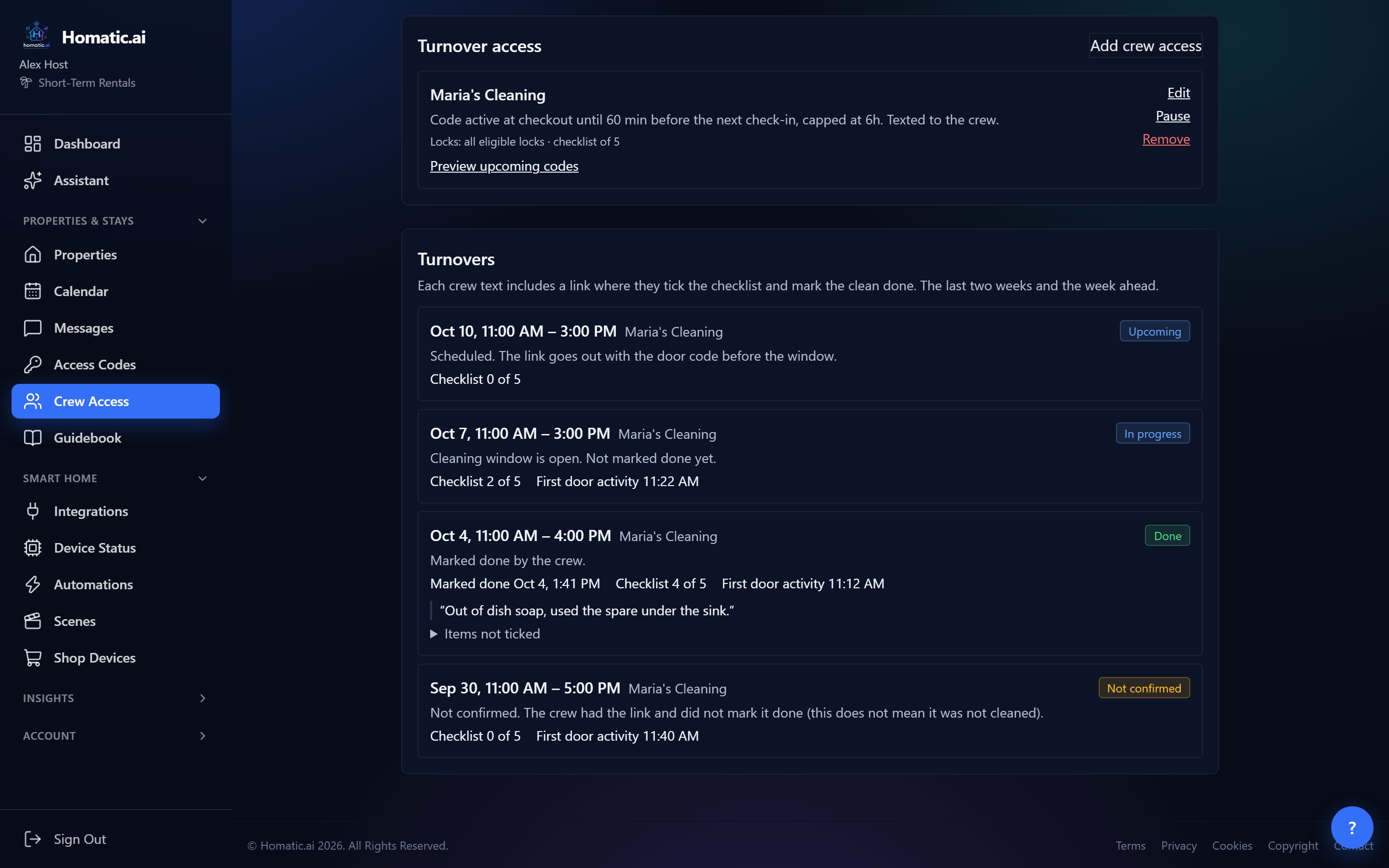
First door activity is the first time a door or lock reported activity inside the window. It is a time, not a name: most locks do not report who opened them.
Texting the crew from an automation
Your crew contacts can also receive alerts from your own automations. In an automation’s text or email step, set Send to to Cleaning crew. For example: “30 minutes after checkout, if any window is open, text the cleaning crew.” The AI builder understands “text the cleaner” too.
Pausing, changing and removing
- Pause revokes that crew’s upcoming codes and stops new ones; Resume starts issuing them again.
- Remove on an access rule revokes its upcoming crew codes from the locks.
- Remove on a contact revokes their crew codes from the locks as well.
Crew access or a team login?
Crew access is for people who need the door and the checklist, nothing more. Someone who should see bookings, control devices or manage the property needs a login instead: see users, roles and permissions. Guest codes work the same way for guests; see automatic guest codes.
Which plans include it
Crew access is part of automatic guest and crew door codes, included from the Homeowner plan up, and in every free trial.
Common questions
When does a crew code start and stop?
It starts at checkout plus your start offset and stops at the next check-in minus your buffer, or after the maximum length you set (1 to 24 hours), whichever comes first. A window under 30 minutes gets no code, and the preview says why.
Which locks work with crew access?
Locks that enforce the time window themselves: Schlage, Yale, August, or any lock connected through Seam. The lock stops accepting the code at the end of the window.
Does my cleaner need an account or an app?
No. They get a text with the code and a link to a page where they tick off the checklist and mark the clean done. The link shows only the property, the window and the checklist.
What happens when a booking changes?
Homatic recomputes every upcoming turnover every few minutes. A moved booking moves the code window, and a cancelled booking removes the code.
See Homatic on your own properties
Connect a property and the dashboard fills in from your real devices — your locks, your thermostat, your calendar. Free for 30 days on Starter, no card required.