 Homatic.ai
Team access
Sharing a property: users, roles and what each one can do
Co-owners, a property manager, family, a cleaner, an accountant: each needs a different slice of the property. Homatic gives each person their own login and a role, and lets you hand specific jobs to a property manager without handing over the whole house.
Start free — no credit card Compare the roles
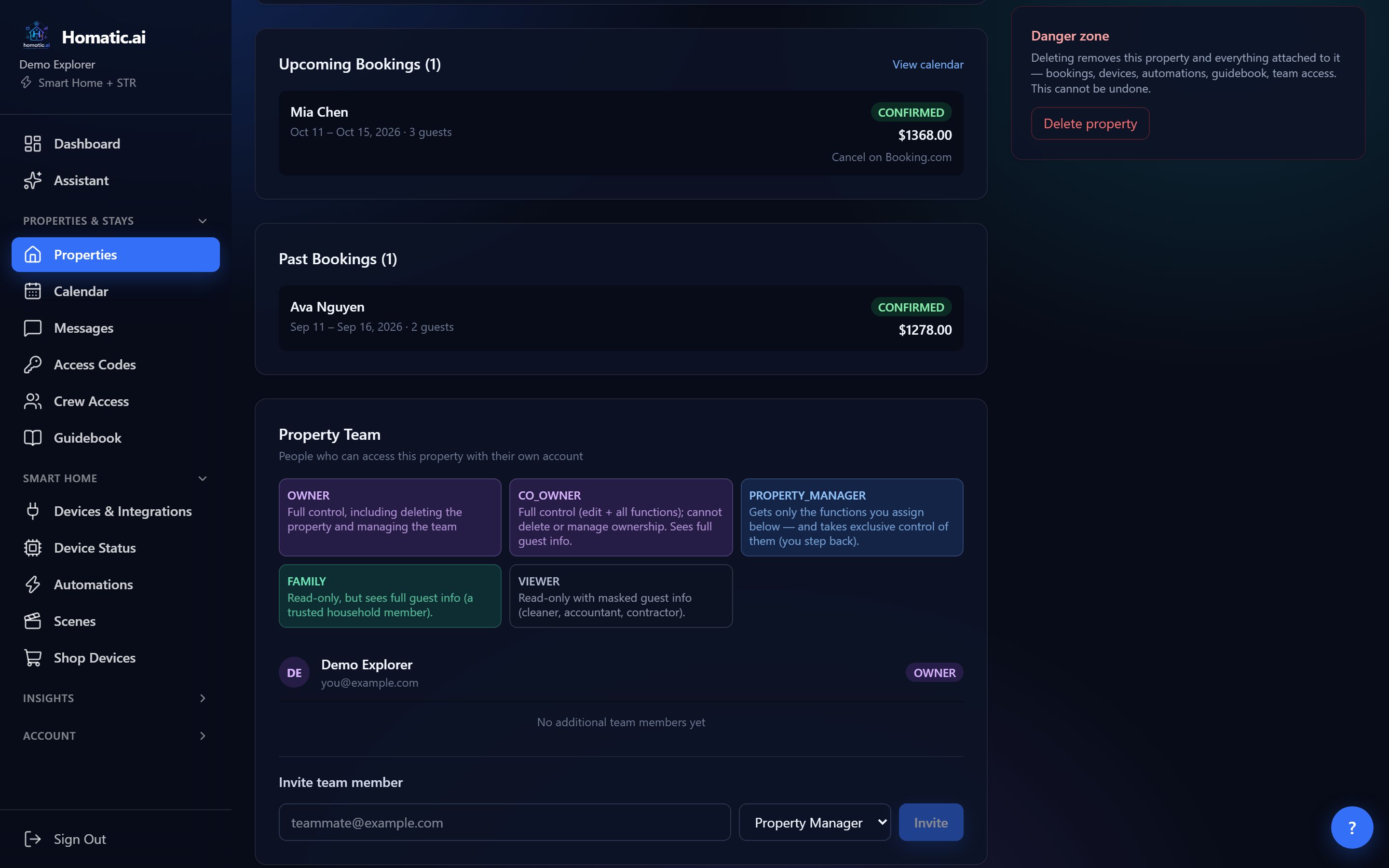
Invite someone
- 1Open the propertyGo to Properties, open the property, and scroll to the Property Team card. Access is set per property, so someone can manage one home without seeing the others.
- 2Enter their email and pick a roleUnder Invite team member, type their email, choose a role and press Invite.
- 3Send them the linkHomatic shows an invite link with a Copy button. Send it to them yourself, by text or email. Homatic does not email it for you.
- 4They acceptThey open the link, sign in or create an account with the email you invited, and accept. If they already have an account, the invitation also waits for them in the app, with Accept and Decline buttons.
An invite link does not expire. If someone loses it, Resend invite link on their pending row creates a fresh one and copies it.
The five roles
| Role | Can | Cannot |
|---|---|---|
| Owner | Everything, including deleting the property and managing the team | — |
| Co-Owner | Edit the property, control devices, and every function; sees full guest information | Delete the property or manage the team |
| Property Manager | Only the functions you assign, and those exclusively (see below) | Anything you have not assigned; starts read-only |
| Family | View everything, including full guest details and guest messages | Change anything |
| Viewer | View the property | See guest messages; guest names are shortened to a first name and last initial, with no contact details. Good for a cleaner, accountant or contractor |
Bring your team in → Each person gets their own login, and you choose what they can see and change.
Handing jobs to a property manager
When you invite a Property Manager, a list of functions appears on their row. Each box takes effect the moment you tick it:
- Bookings & pricing, Guest messaging, Guest access codes, Guidebook, Expenses & financial analytics, Automations. These six are exclusive: while the manager holds one, they are the only person who can change it, and you step back to read-only for that job. That stops two people editing the same thing. Two side effects to know about: while they hold Bookings, your own view of guest details is masked, and while they hold Guest messaging, guest messages are theirs alone. You always keep sight of revenue.
- Edit property details and Control devices. These two are shared: the manager can do them and so can you.
Untick a box, or remove the manager, and that job comes straight back to you.
Things only the owner can do
Some things can never be handed over, to anyone: adding or removing devices and integrations, deleting the property, and inviting, changing or removing team members. Other members see only their own place on the team, not the full list.
Changing or removing access
- Change a role with the dropdown on their row. Changing the role clears any functions you had ticked, so tick them again if they still apply.
- Remove revokes access after a confirmation. It also deletes booking-site connections they set up and any guidebook they created, and returns every job to you.
- A team member can also choose Leave property themselves.
Cleaners who do not need a login
A cleaning crew usually needs a door code and a checklist, not an account. For that, use Crew Access in the sidebar: add the crew as a contact, and Homatic texts them a fresh door code for each turnover, valid only between checkout and the next check-in, with a link where they tick off the clean. No login involved.
Which plans include it
Inviting team members needs the property owner’s plan to be Starter or above. There is no limit on the number of people.
Common questions
Does the person I invite need an account?
Yes. They open your invite link and sign in, or create an account, with the email address you invited.
What does exclusive mean for a property manager?
For the jobs you assign (bookings, messaging, access codes, guidebook, expenses, automations), the manager is the only one who can change them and you step back to read-only, until you untick the job.
Which plans allow team members?
Starter and above, judged on the property owner’s plan, with no limit on the number of people.
See Homatic on your own properties
Connect a property and the dashboard fills in from your real devices — your locks, your thermostat, your calendar. Free for 30 days on Starter, no card required.