 Homatic.ai
Automation suggestions
How Homatic suggests which automations to build
The hardest part of automating a home is knowing what to automate. Homatic proposes rules from three places: what your own home has actually done, what you already run at your other properties, and what has worked for other hosts. Every suggestion is shown to you first, and you decide.
Start free — no credit card See where suggestions come from
Five sources of suggestions
1. “From this property”: what your home has actually done
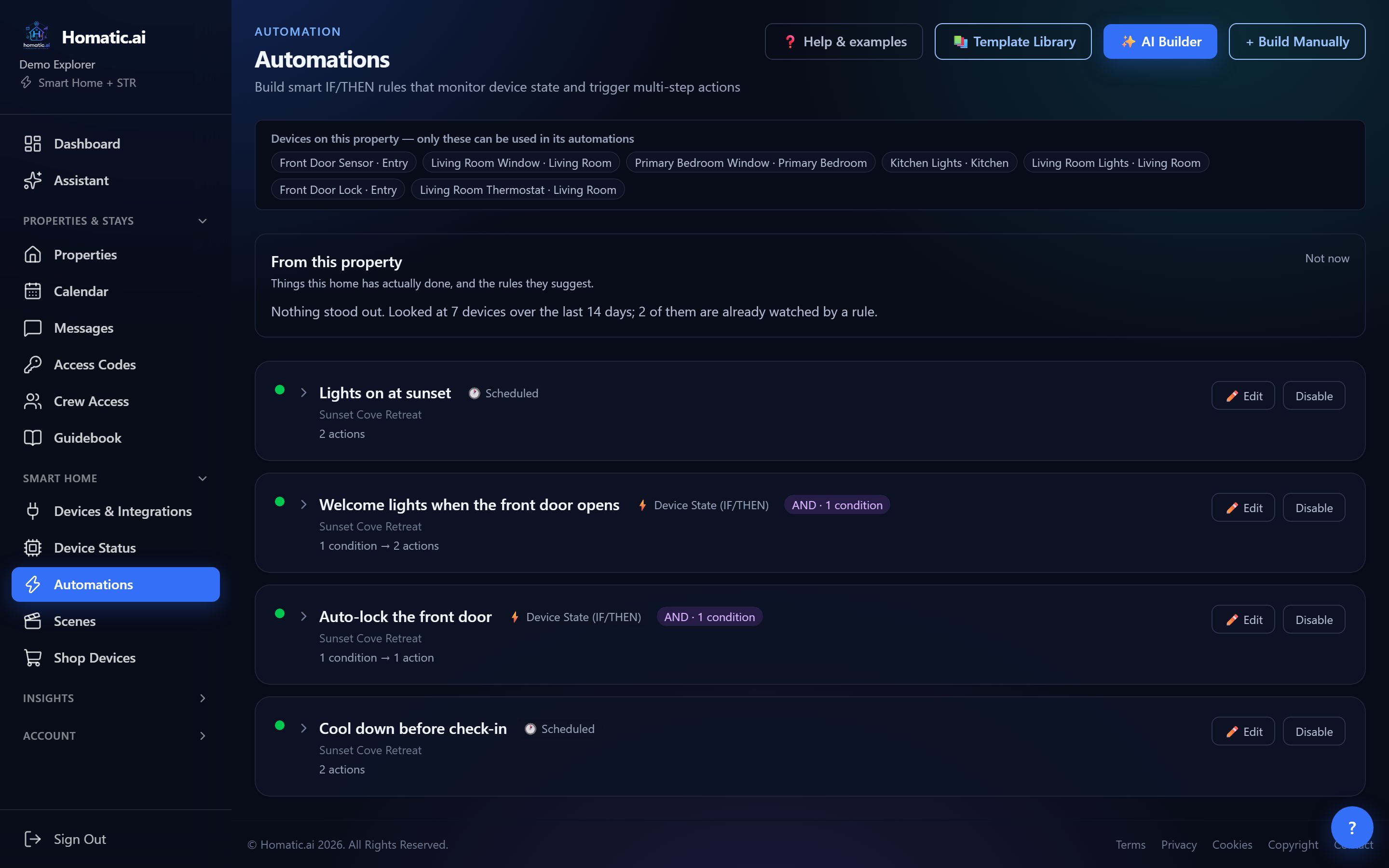
With one property selected on Automations, this panel looks back over the last 14 days and points out patterns, each with the evidence attached and a ready-made sentence to build from:
- An alarm device nothing is watching, for example a leak sensor no active rule reads. It always comes first, because a leak sensor nobody is listening to protects nothing. Suggested: “Text me immediately if the leak sensor detects anything.”
- A device that keeps going quiet: “has gone quiet 4 times in the last 14 days.” Suggested: “Tell me if it stops reporting for more than an hour.”
- A lock left unlocked overnight on three or more nights, judged in the property’s own time zone. Suggested: try to lock it after 11pm, and text you if it will not lock.
- Batteries at or below 20%, grouped into one line. Suggested: an email when any device drops below 20%.
A pattern has to happen at least three times before it is suggested: one forgotten night is an accident, not a habit. Build this puts the sentence into the AI builder, where you review the rule before it is created. When nothing stands out, the panel says how many devices it looked at, so “nothing found” is never mistaken for “nothing checked”.
2. Rules you already use, offered on your other properties
Built a good rule on one property? When you open another property you own, Homatic offers the rules from your other homes that would work there, already matched to that home’s devices: “3 rules you already use could run here”. It shows where each one came from and how many of your properties already run it. Where there are two possible devices, such as two locks, it asks you to choose rather than guessing. Rules that would not work there are summarized as what is missing, for example “2 more of your rules would work here with a water sensor”. Tick the ones you want and press Add.
The reverse works too: right after you create a rule, Apply to your other properties shows which of your other homes can run it, and applies it in one step after the same safety checks as any other save.
3. The template library: what has worked for other hosts
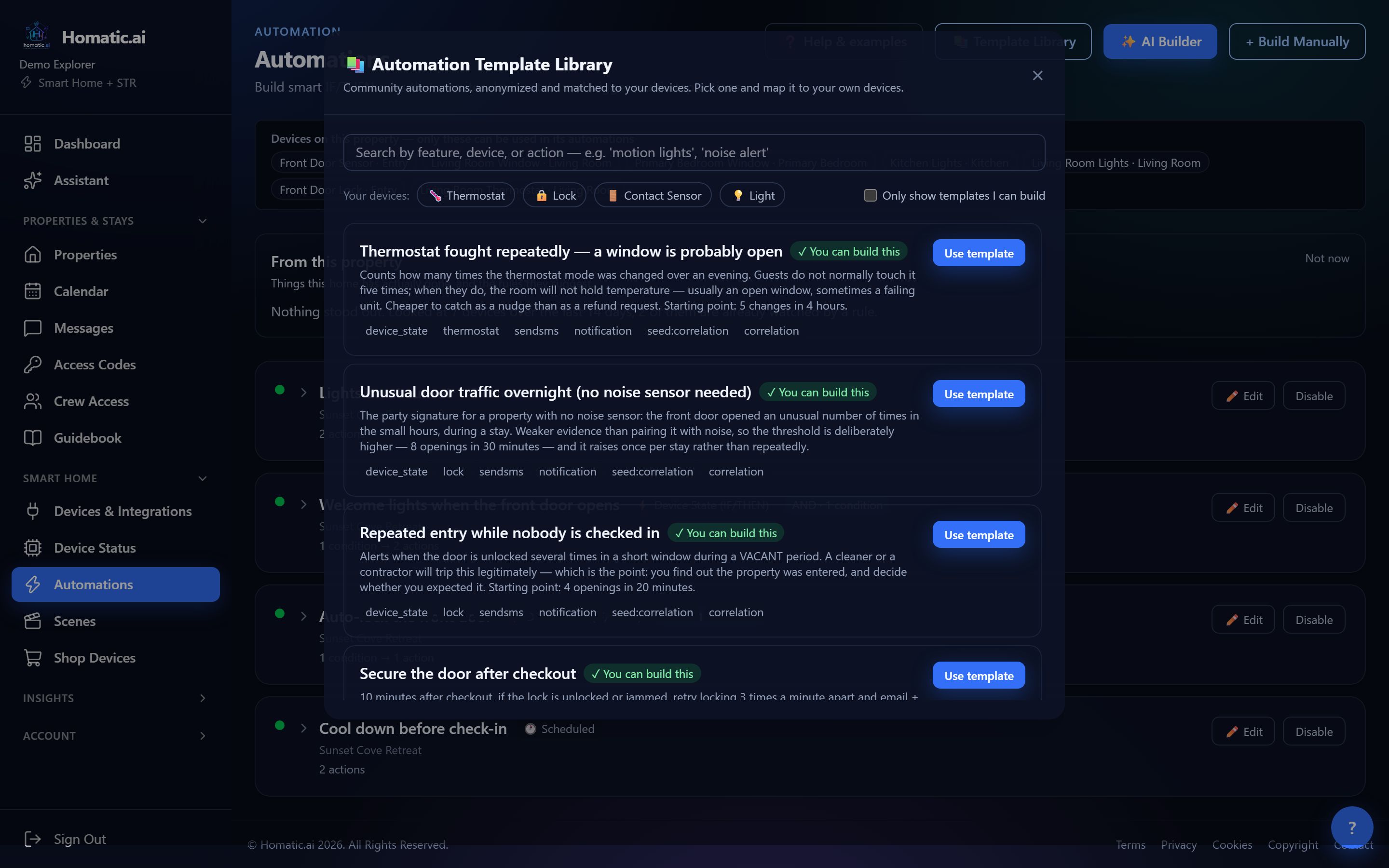
Template Library holds rules other hosts built, anonymized (no device names, phone numbers or codes) and reviewed before they are listed. Each card says ✓ You can build this or what it needs, and Only show templates I can build filters the list. Use template lets you map each step to your own devices, then Add to my home.
Five templates detect situations from two signals at once, such as a possible party (noise plus repeated door openings late at night during a stay), repeated entry while nobody is checked in, unusual overnight door traffic, possible smoking, and a thermostat being changed over and over (usually an open window). These only send you a message: they flag something for a person to judge, and never operate a device. Their thresholds are starting points to adjust for your home.
See what Homatic suggests for your home → Connect a property and the suggestions start from your real devices.
4. AI Suggestions from your usage patterns
Under Insights → Device Analytics, the AI Suggestions tab looks at the last 30 days of device activity (busiest hours, unusual spikes, how use tracks the weather) and proposes three to five automations with an estimated saving. Only devices you can actually control are used. Review in builder opens the suggestion in the AI builder on the Automations page, where you check the rule against your devices before anything is saved.
5. Example prompts and the AI builder
Help & examples on the Automations page lists ready-to-use sentences by theme: schedules, turnovers, safety and alerts, comfort and energy, correlations and advanced patterns. Tap one to send it to the AI Builder, which shows the proposed rule, with every step checked against your devices, and saves nothing until you press Create. For writing your own, see how to build a smart home automation.
“Not now”
Not every suggestion fits. Not now shrinks a panel to a single line with a Show button, and it stays that way when you come back. The panel only opens again by itself when there is something new to suggest.
Suggestions never act on their own
A suggestion is only ever a proposal: nothing is saved until you choose it, and every rule goes through the same checks as one you build by hand. That includes the rule that a smoke or carbon monoxide alert can only notify, never operate a device.
Which plans include it
Automations, the template library and suggestions from your other properties are on every plan. “From this property”, AI Suggestions and the AI builder need a plan that includes AI, which every paid plan and the free trial do.
Common questions
Will Homatic create automations without asking me?
No. Every suggestion is a proposal: nothing is saved until you choose it and press Create, and every rule goes through the same safety checks as one you build by hand.
How does it decide what to suggest from my home?
It looks back 14 days at your devices and rules: alarm sensors no rule watches, devices that keep dropping off, a lock left unlocked overnight on three or more nights, and low batteries. Each suggestion shows the evidence.
Can I hide suggestions I do not want?
Yes. Not now shrinks the panel to one line and remembers it; it opens again only when there is something new.
See Homatic on your own properties
Connect a property and the dashboard fills in from your real devices — your locks, your thermostat, your calendar. Free for 30 days on Starter, no card required.